A Terminal-Only Workflow with tmux
You can run Shep without opening a browser. In this tutorial you set up tmux, open the shep tui console, act on features with single keys, follow logs and open shells in panes beside it, and keep an eye on Shep’s processes with shep ps.
Time: about 10 minutes. You need: Shep installed and an agent set up (see From zero to a merged PR), tmux, and a repository with a few features in it.
Set up tmux
Add these lines to ~/.tmux.conf:
# Shep's summary in the status bar, while shep tui runs
set -g status-right '#{@shep_status}  %H:%M'
# let terminal notifications through to your terminal app
set -g allow-passthrough on
Start a session for your work:
tmux new -s shepIf tmux was already running, reload the file with tmux source-file ~/.tmux.conf.
Start a few features
From the shell in your repository, start two or three features, for example:
shep feat new "add a 404 page" --push --pr
shep feat new "add a /health endpoint that returns uptime" --push --pr
shep feat new "add a dark mode toggle to the header" --no-fast --pr
The last one is spec-driven, so it will stop at a requirements gate you can approve from the console.
Open the console
shep tui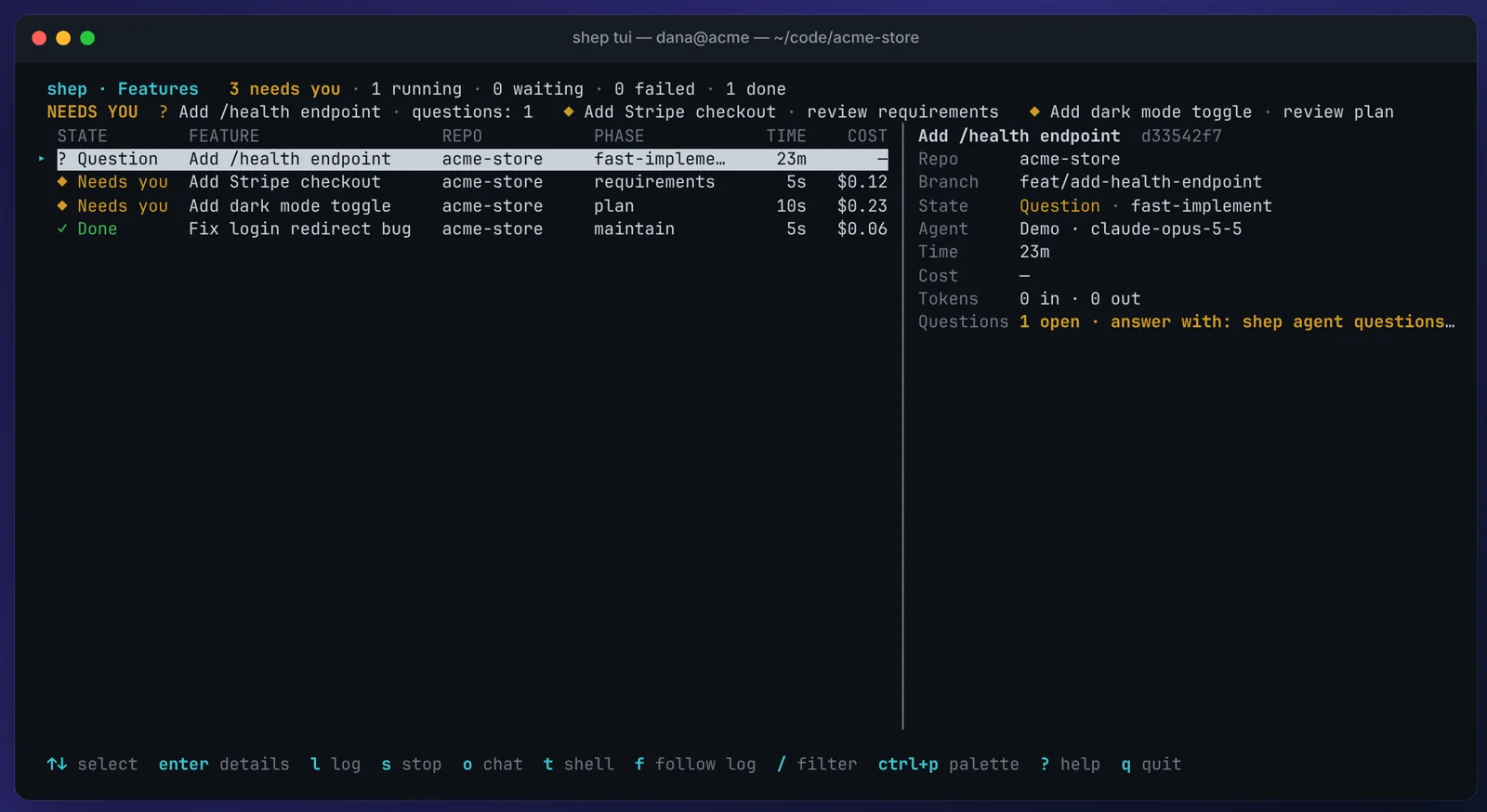
You should see a header with counts, a NEEDS YOU strip, one row per feature and a details pane for the selected one. The roster refreshes every two seconds. Use shep tui --repo . to show only the current repository.
The console reads Shep’s local database directly, so it also works over SSH or when the web daemon isn’t running.
Move and inspect
| Key | Does |
|---|---|
↑ ↓ or j k | Select a feature |
enter | Details pane |
l | Log pane: the tail of the agent’s output |
/ | Filter the roster by what you type |
? | All keys |
q | Quit |
The key bar at the bottom shows only the keys that apply to the selected feature.
Approve or reject a gate
Select a feature marked ◆ Needs you:
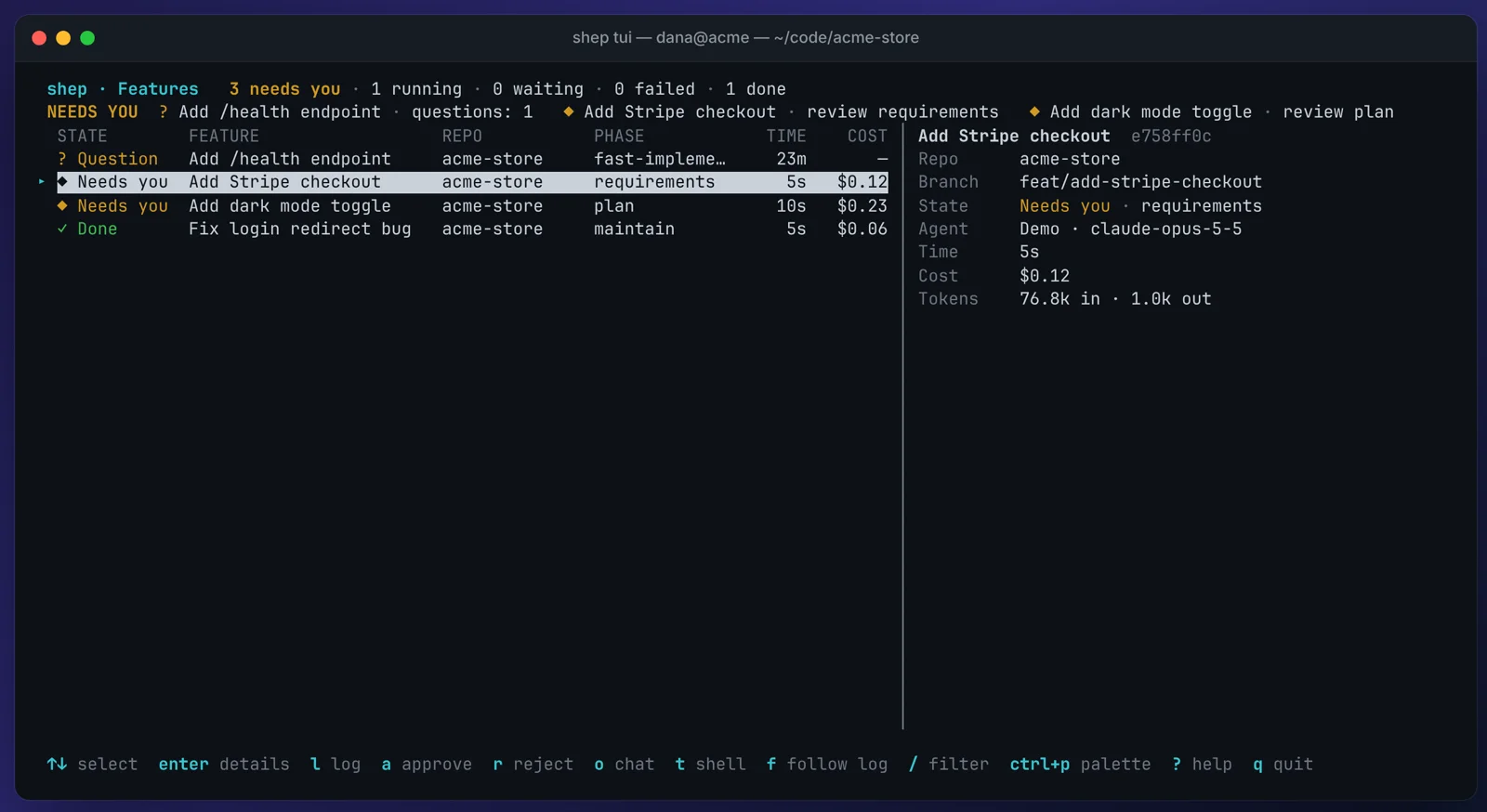
aapproves the gate, exactly likeshep feat approve <id>. On a merge gate that merges the PR.ropens a feedback line. Type what to change and pressenter;esccancels.
You should see the feature leave the NEEDS YOU strip and go back to work.
Features marked ? Question are waiting on an agent question. The details pane shows the command to answer it. See Decisions & agent questions.
Open panes beside the console
Inside tmux, select a feature and press:
fto follow its agent log in a split next to the console. Focus stays on the console.tto open a shell in the feature’s worktree in a split. Focus moves to the shell; it’s a normal git checkout of the feature’s branch.ForTto open the same in a new tmux window instead.Cto open a window for every active feature. The console renames the windows as states change:◆needs you,●running,✗failed,✓done.
Each split halves the console’s pane, so use F and T when you want several.
Search the command palette
Press ctrl+p (or :). Every command that applies to the selected feature is listed with its key:
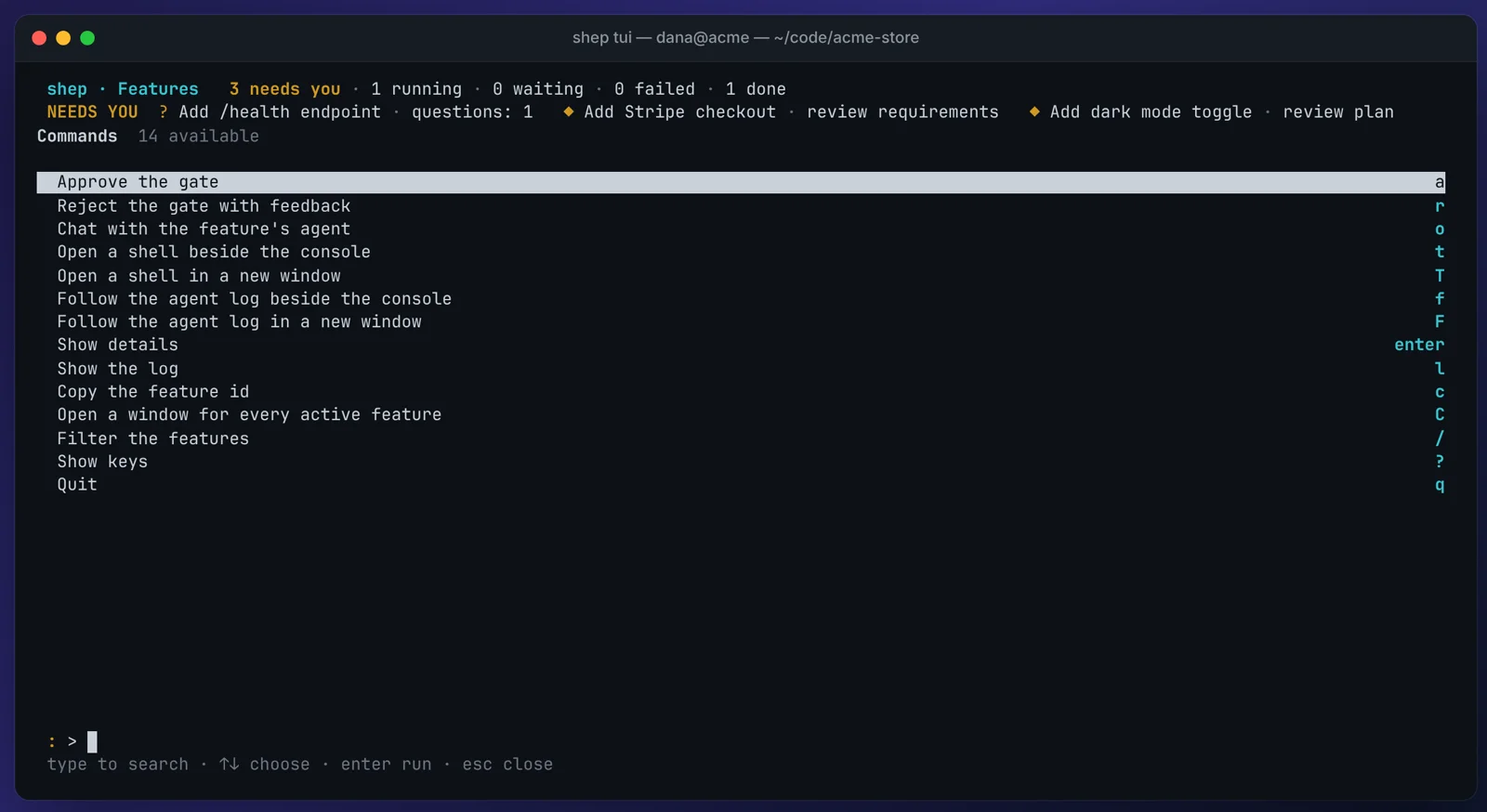
Type to filter, for example follow, and press enter to run the highlighted command.
Watch Shep’s processes
Split a new tmux pane (ctrl+b %) and run:
shep ps --watch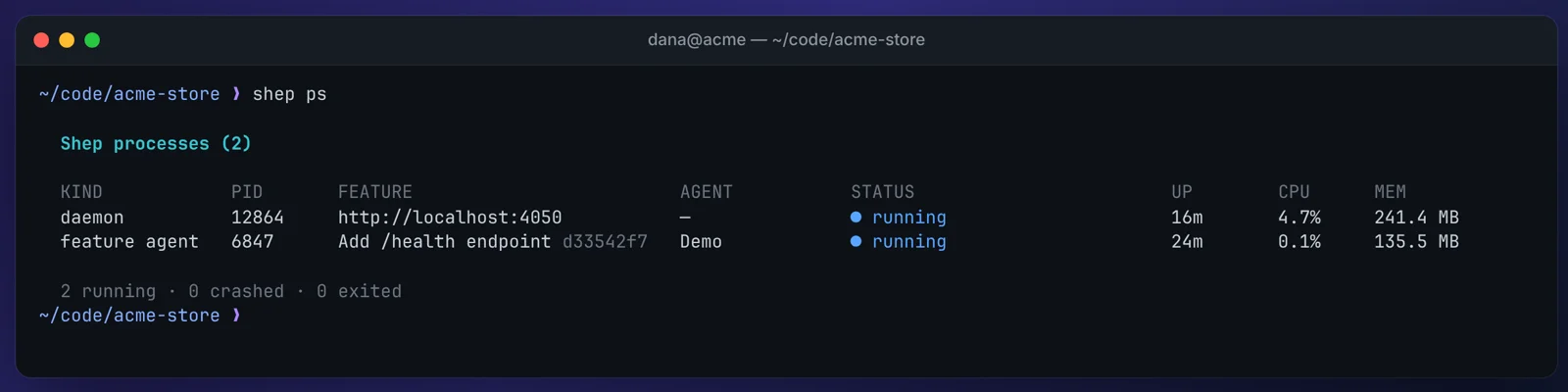
You should see the web daemon (if it’s running) and one row per running feature agent, redrawn every two seconds. Press ctrl+c to stop watching. To stop one agent run, use shep ps stop <id> with a feature id or run id. Start it again later with shep feat resume <id>.
Check the status line
Look at the right side of your tmux status bar.
You should see Shep’s summary, for example ◆ 2 needs you · ● 1 running, updated by the console whenever it changes. When the console isn’t running, shep tui --status tmux prints the same line once, so you can call it from a script or a prompt.
Troubleshooting
shep tuiexits with code 1 right away. It needs an interactive terminal. In scripts and pipes, useshep feat lsorshep tui --status.tandftake over the whole terminal. Shep didn’t find tmux. Check that$TMUXis set in the console’s shell, or force it withSHEP_MULTIPLEXER=tmux shep tui. Zellij, WezTerm and kitty work too; see Terminal console.- The status segment is empty.
@shep_statusis set only whileshep tuiruns. Check thatstatus-rightis set in the session you’re looking at. - No notification when a feature needs you. Turn on
allow-passthroughas in step 1.shep tui --no-notifyturns alerts off on purpose.
What’s next
- Terminal console: every key, chat with an agent (
o), Zellij, WezTerm and kitty. - Run ten features without chaos: the fleet commands that pair with the console.
- CLI reference