Terminal Console
shep tui opens a full-screen console that lists every feature, live. Features that need you are pinned at the top, and single keys approve, reject, stop or resume a run. Inside tmux, Zellij, WezTerm or kitty it can also open a feature’s shell or agent log in a pane next to the console.
shep tui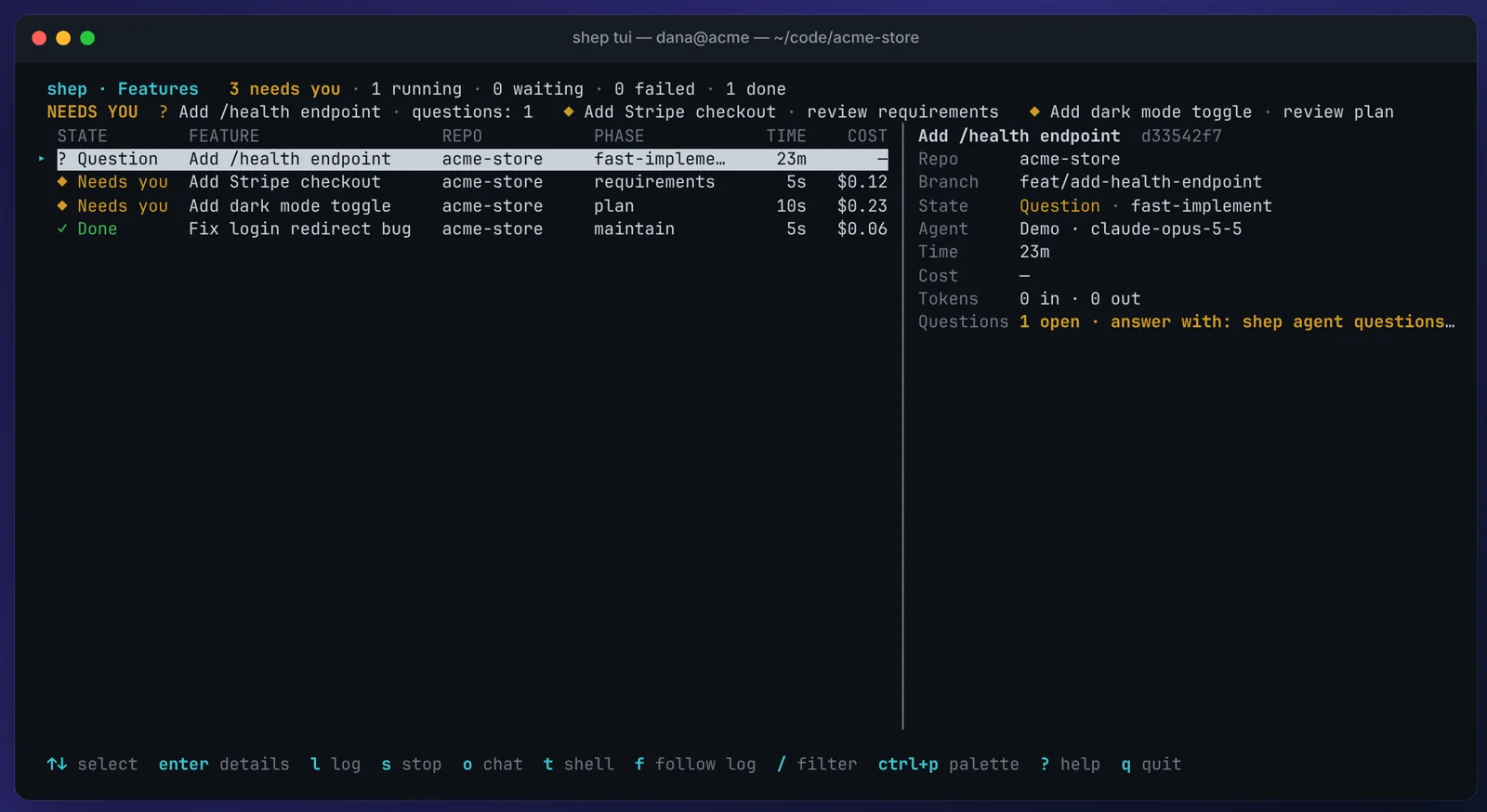
The console does not need the web daemon. It reads Shep’s local database directly and runs actions through the same code as shep feat approve, shep feat reject and shep feat resume, so you can use it over SSH or on a machine where shep start isn’t running. It refreshes every 2 seconds and uses the terminal’s alternate screen, so your scrollback is untouched when you quit.
Options
| Option | What it does |
|---|---|
--repo <path> | Only show features of this repository (shep tui --repo . for the current one) |
--all | Include archived features |
--no-notify | Don’t ring the bell or send a terminal notification when a feature starts needing you |
--status [style] | Print a one-line summary and exit. Styles: plain (default) or tmux. Needs no TTY |
shep tui needs an interactive terminal. In scripts and pipes it exits with code 1 and points you to shep feat ls.
What’s on the screen
 shep · Features   4 needs you · 0 running · 0 waiting · 0 failed · 0 done
 NEEDS YOU  ◆ Dark Mode Toggle · review merge   ◆ Rate Limit The Public API · review merge   ◆ Billing…
  STATE        FEATURE           REPO       PHASE    AGENT          TIME   COST │ Rate Limit The Public API  ae315e71
  ◆ Needs you  Dark Mode Toggle  acme-web   merge    Claude Code      0s      — │ Repo      acme-web
▸ ◆ Needs you  Rate Limit The P… acme-web   merge    Claude Code      0s      — │ Branch    feat/rate-limit-the-public-api
  ◆ Needs you  Billing Dashboar… acme-web   merge    Claude Code      0s      — │ State     Needs you · merge
  ◆ Needs you  Add Password Res… acme-web   merge    Claude Code      0s      — │ Agent     Claude Code · claude-opus-5-5
                                                                                │ Time      0s
                                                                                │ Cost      —
                                                                                │ Tokens    0 in · 0 out

↑↓ select enter details l log a approve r reject ? help q quit- Header. Counts of features that need you, are running, waiting, failed and done. The terminal window title also shows how many need you (
shep · needs you: 4). - NEEDS YOU strip. Every feature waiting on you: an approval gate (
review merge,review plan, …) or open agent questions (questions: 2). These features are also sorted first in the roster. When nothing needs you, the strip says so. - Roster. One row per feature with its state, name, repository, phase, agent, elapsed time and cost.
- Details pane. Repo, branch, worktree, state, agent and model, time, cost, tokens, the PR, open questions and the last error for the selected feature. Press
lto swap it for the tail of the agent log. - Key bar. Shows only the keys that apply to the selected feature. For example,
aandrappear only when the run is waiting at a gate.
Keys
| Key | Action |
|---|---|
↑ ↓ / j k | Move the selection |
PgUp PgDn / g G | Page up and down, jump to first and last |
enter / i | Details pane |
l | Log pane: the tail of the current run, kept fresh |
a | Approve the gate |
r | Reject the gate. Type your feedback, enter sends, esc cancels |
s | Stop the run. Asks y/n first; the run stays resumable |
R | Resume an interrupted or failed run |
u | Release the paused fleet queue (asks first). Only offered while the queue is paused |
o | Chat with the feature’s agent. esc returns to the list |
t / T | Shell in the feature’s worktree: split pane / new window |
f / F | Follow the agent log: split pane / new window |
/ | Filter the roster. enter keeps the filter, esc clears it |
: / ctrl+p | Command palette |
c | Copy the selected feature’s full id to the clipboard (OSC 52) |
C | Control center: a window for every active feature |
N | New feature in the selected feature’s repository |
d | Learned-harness changes waiting for you (adopt or reject). Only appears when the experimental self-learning harness has a change waiting |
? | Help (esc closes) |
q / ctrl+c | Quit and restore the terminal |
Approve and reject
a approves the gate the selected feature is waiting at, exactly like shep feat approve <id>. Approving the merge gate merges the PR. r opens a feedback line at the bottom of the screen:
 Feedback for Rate Limit The Public API: > Split the rate limiter from the API key rotation
 enter send · esc cancel
The agent reruns the phase with your feedback, like shep feat reject <id> --reason "…".
Create a feature
N asks for a description and creates a feature in the same repository as the selected row. Gates, push and PR follow your workflow settings (shep settings workflow). If the parallel-feature limit is reached, the new feature is queued and the console tells you its position.
Filter and the command palette
/ filters the roster by every word you type, for example acme merge. : or ctrl+p opens a palette of every command that applies to the selected feature. Type to search, enter runs the command:
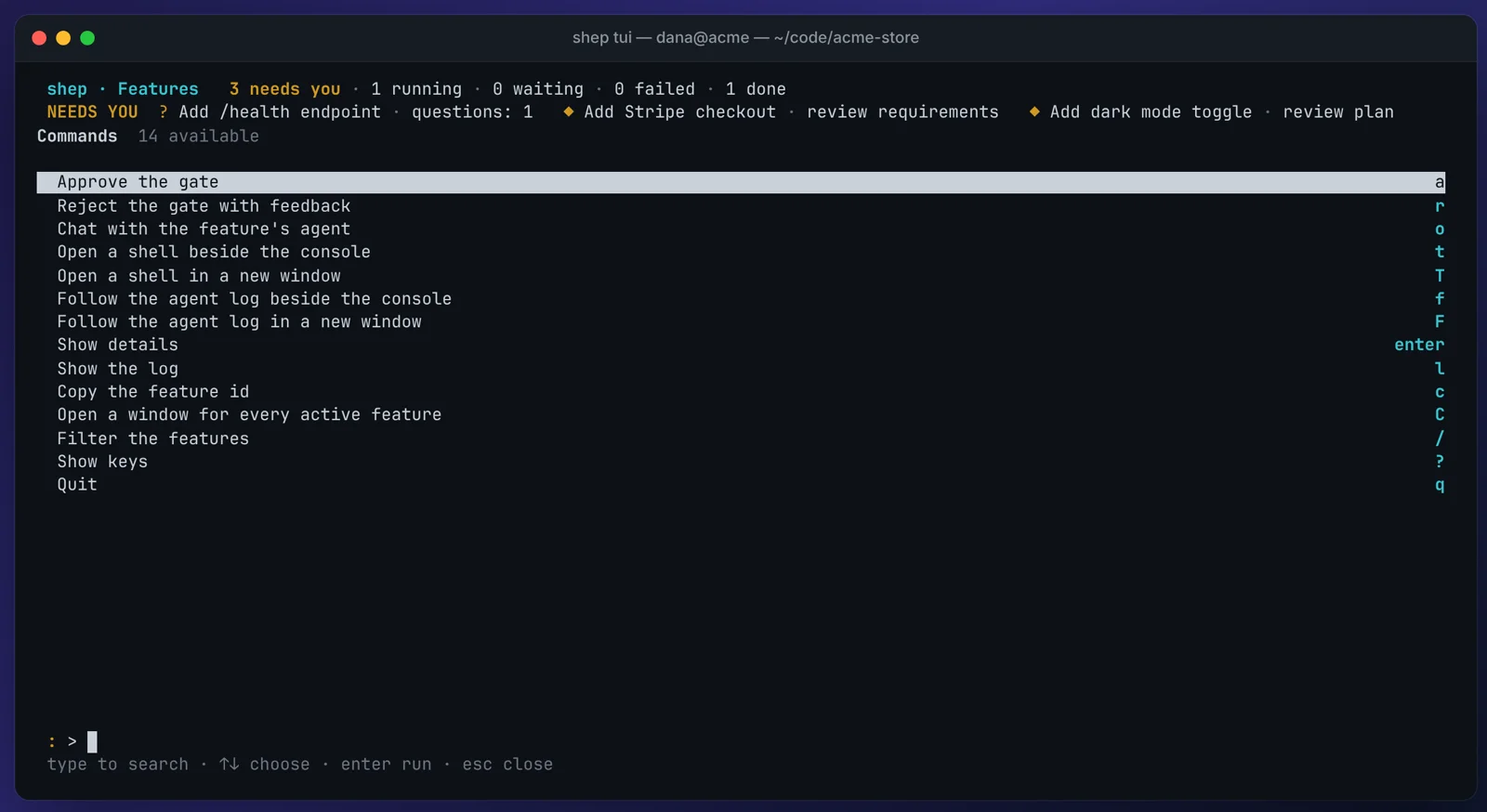
Commands  3 available
  Open a window for every active feature                                     C
  Open a shell in a new window                                               T
  Follow the agent log in a new window                                       F
 : > window
 type to search · ↑↓ choose · enter run · esc close
Chat with a feature’s agent (o)
o opens a full-screen transcript of the feature’s chat, the same conversation as the Chat tab in the web UI. An interactive agent runs in the feature’s worktree, its text streams in as it writes, and each tool call shows as one muted line. Type a message and press enter.
When the agent asks a question, its options are numbered. Press a digit on an empty line to pick one, or type your own answer:
Chat · Billing Dashboard Charts · ready
you › Which chart library should we use?
? Charts: Which library?
  1. Recharts — Already used on the reports page
  2. Chart.js — Smaller bundle, canvas rendering
 answer >
 1–9 pick an option · or type an answer and press enter · esc back
Chat needs an agent with interactive sessions: Claude Code or Cursor CLI. Chat sessions the console starts stop when you quit it. The feature’s background run is not affected; steer it at its gates with a and r. See Chat.
Panes in tmux, Zellij, WezTerm and kitty
When the console runs inside a terminal multiplexer, t opens a shell in the feature’s worktree and f follows its agent log (shep feat logs -f) in a split next to the console. T and F open them in a new window (a tmux window, a WezTerm or kitty tab, a Zellij floating pane) instead.
- A pane starts in the feature’s worktree, or in the repository if the worktree doesn’t exist yet.
- A shell pane takes focus. A log pane leaves focus on the console.
- Each split halves the console’s pane, so use
TandFwhen you want several at once. - Panes inherit the console’s
SHEP_HOME, so theirshepcommands read the same data.
Detection. Shep checks for a live session in this order: TMUX, ZELLIJ, WEZTERM_PANE, KITTY_WINDOW_ID. tmux or Zellij running inside a WezTerm or kitty window wins, because that’s the session that should split. TERM and TERM_PROGRAM are not used: they survive into nested shells and SSH sessions that have no multiplexer to talk to.
kitty needs remote control, because Shep opens panes with kitten @ launch. Add this to kitty.conf and restart kitty:
allow_remote_control yes
# any socket path works
listen_on unix:/tmp/kitty
Override. Set SHEP_MULTIPLEXER to pick one, or turn panes off:
SHEP_MULTIPLEXER=wezterm shep tui   # tmux | zellij | wezterm | kitty
SHEP_MULTIPLEXER=none shep tui      # run t and f in this terminal
Without a multiplexer, t and f run in the same terminal: the console steps aside and comes back when you exit the shell or press ctrl+c to stop following the log.
Control center (C)
C opens a window for every active feature that has a run and no window yet. Each window follows that feature’s log and is named after its state. As states change, the console renames the windows: ◆ needs you, ● running, ✗ failed, ✓ done.
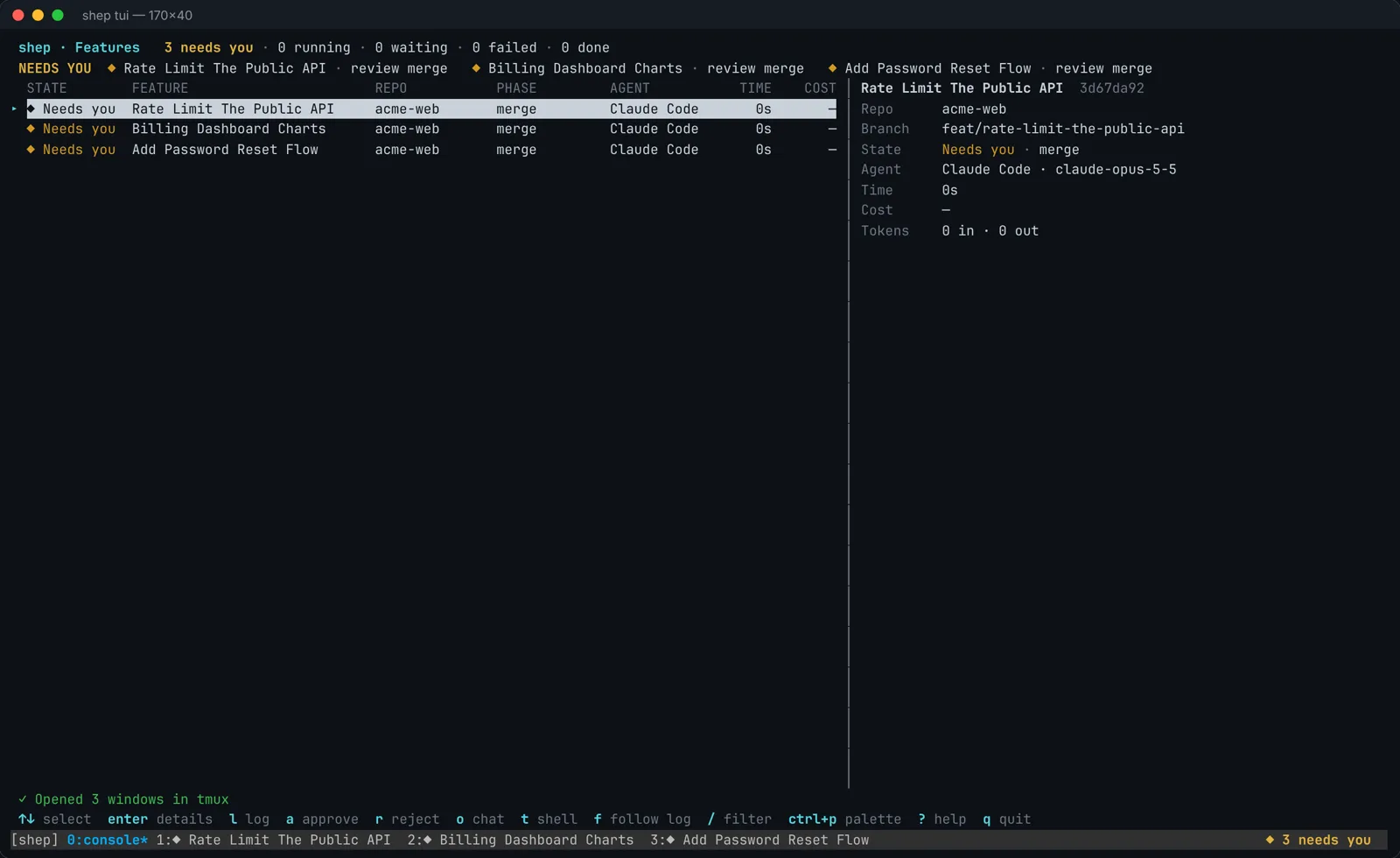
[shep] 0:console* 1:✓ Rate Limit The Public API 2:◆ Billing Dashboard Charts 3:◆ Add Password Reset Flow ◆ 2 needs youZellij can’t rename a pane that isn’t focused, so in Zellij the names stay as they were when opened.
tmux status line
Inside tmux the console publishes two tmux user options whenever they change:
| Option | Value |
|---|---|
@shep_status | A styled summary, for example ◆ 2 needs you · ● 1 running |
@shep_needs_you | The number of features that need you |
Put the summary in your status bar in ~/.tmux.conf:
set -g status-right '#{@shep_status} %H:%M'When the console isn’t running, shep tui --status prints the same line once and exits, so a status bar or prompt can call it:
$ shep tui --status
◆ 2 needs you
$ shep tui --status tmux
#[fg=yellow,bold]◆ 2 needs you#[default]
--status opens the database on every call, so while the console is running prefer #{@shep_status}.
Terminal alerts
When a feature starts needing you, the console sends your terminal’s own notification, so it reaches the right tab or pane:
| Terminal | Alert |
|---|---|
| iTerm2 | OSC 9 |
| WezTerm, Ghostty | OSC 777 |
| kitty | OSC 99 |
| Anything else | Bell |
Inside tmux, the notification is wrapped in tmux passthrough and followed by a bell. Passthrough is off by default in tmux, so turn it on:
set -g allow-passthrough onZellij drops these sequences, so inside Zellij you get a bell only. Use shep tui --no-notify to turn alerts off.
Paused queue banner
When the fleet admission queue is paused (with shep fleet pause), a banner above the NEEDS YOU strip shows how long and why:
 shep · Features   1 needs you · 0 running · 0 waiting · 0 failed · 0 done
 ⏸ queue paused 2h 05m — Release freeze
 NEEDS YOU  ◆ Rate Limit The Public API · review merge
Press u to release it. The console asks first:
Release the paused queue? New features can start. (y/n)This is the same action as shep fleet resume and the Resume button in the web UI. The console never pauses the queue itself. If the fleet’s circuit breaker has tripped, the header also shows breaker tripped.
Running inside Herdr
If you run shep tui in a Herdr pane, the console reports its state to Herdr (blocked with “needs you: N”, working or idle) and releases the pane when you quit. Nothing to configure; outside Herdr nothing is sent. See Agent activity.
List Shep processes: shep ps
shep ps lists the processes Shep runs: the web daemon and the agent workers, with the feature, agent, status, uptime, CPU and memory of each.
shep ps            # live Shep processes
shep ps --all      # include runs whose process has exited
shep ps --json     # rows for scripts
shep ps -w         # redraw every 2 seconds until ctrl+c
Shep processes (1)
KIND PID FEATURE AGENT STATUS UP CPU MEM
daemon 8334 http://localhost:4050 — * running 4s 42.0% 256.4 MB
1 running · 0 crashed · 0 exitedWith --all, runs that exited (finished, failed, or parked at a gate) are listed too:
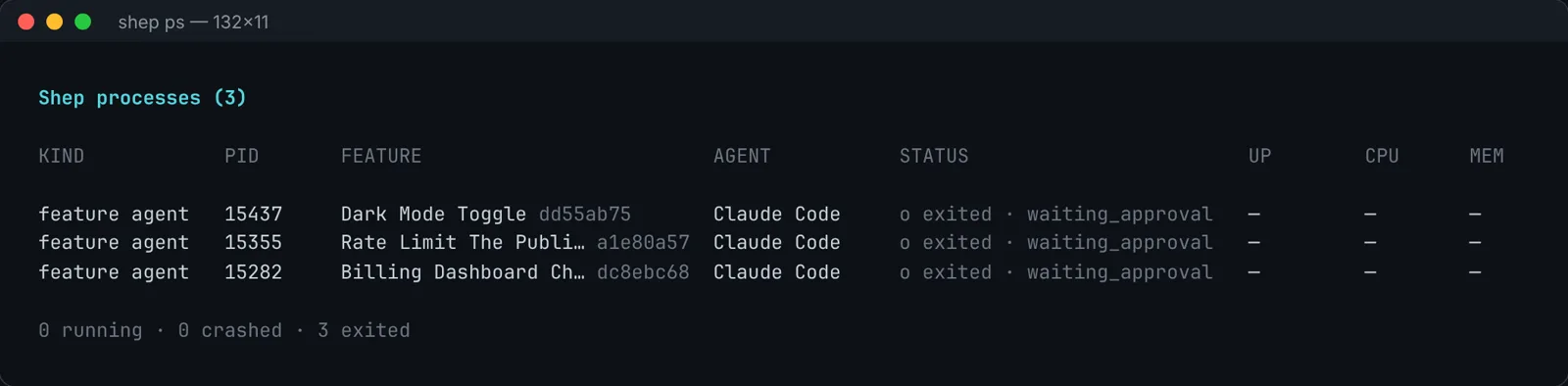
| Column | Meaning |
|---|---|
KIND | daemon, feature agent or agent run |
FEATURE | The feature name and short id (the URL for the daemon) |
STATUS | running, crashed (the run is marked running but its process is gone) or exited, plus the run’s status |
UP, CPU, MEM | Uptime, CPU and memory. Not available on Windows, where they show — |
A crashed feature can be resumed with shep feat resume <id>. --watch needs an interactive terminal; in scripts use --json.
Stop a run
shep ps stop <id><id> is a run id, a feature id, or a prefix of either. The web daemon is not an agent run: stop it with shep stop. If you run shep ps stop from inside a Shep agent run, where it would stop the agent that is running it, Shep refuses unless you pass --force.
What’s next
- A terminal-only workflow with tmux: a hands-on tutorial, with a recording of the console.
- Running many features: parallel limit, queue, batch approvals.
- Agent activity & states: the states shown in the console and
shep feat status. - Decisions & agent questions: every place you can answer an agent.
- CLI reference