Chat
Chat in the web UI’s sidebar lists every conversation you have with Shep and its agents, and opens one full height next to the list. Use it to start work, steer a feature, and answer what agents ask. Features still run in their own worktrees with their usual gates; the chat is another way to drive them, not a replacement for that pipeline.
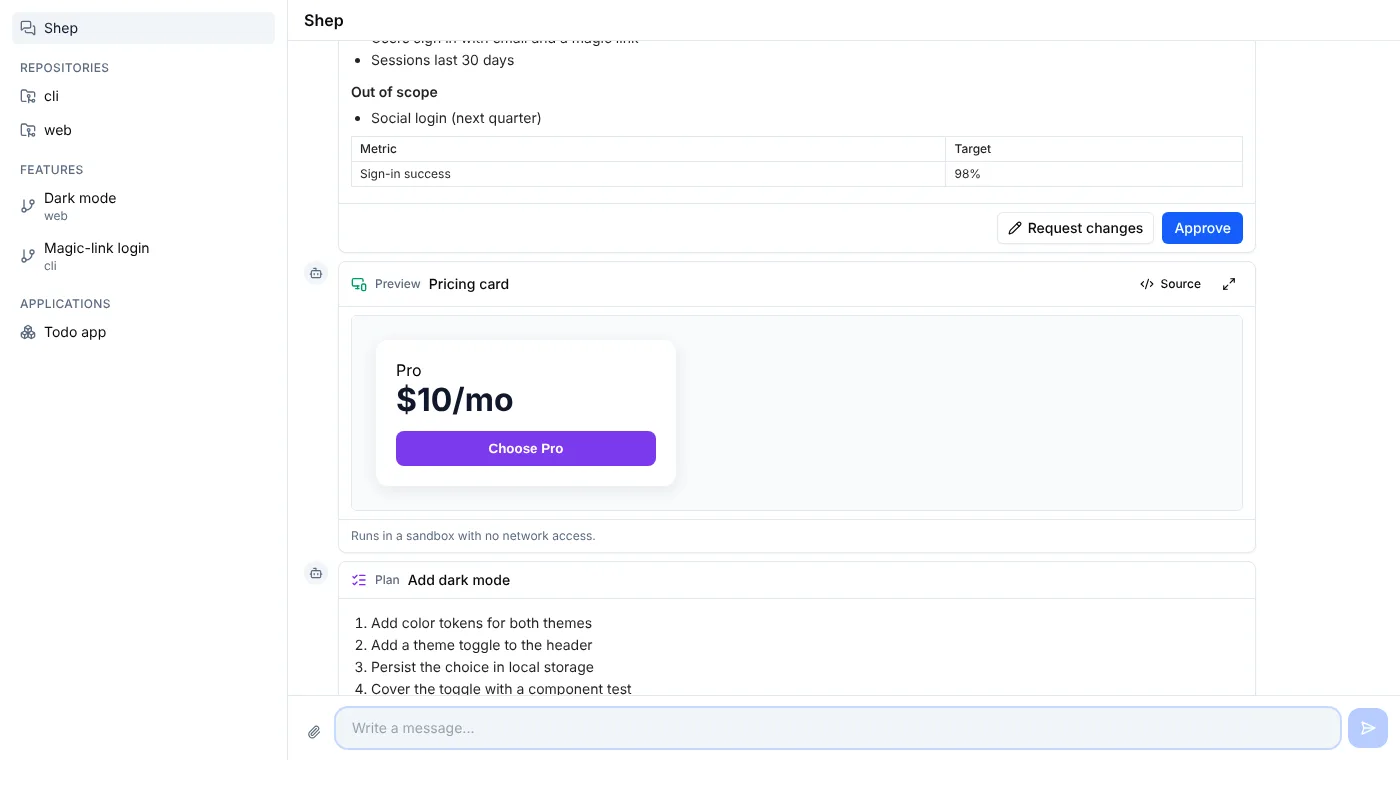
Conversations
The list is grouped by what the conversation is about. Each row shows a dot while the agent is working on a turn.
| Group | Conversation | The agent works in |
|---|---|---|
| Shep | One global conversation about all your work | Shep’s home folder (~/.shep, or $SHEP_HOME) |
| Repositories | One per repository | The repository |
| Features | One per feature that isn’t archived or deleted | The feature’s worktree |
| Applications | One per app | The app’s repository |
The URL is /chats for the list and /chats/<scope> for one conversation. A feature conversation shows the feature’s lifecycle and an Open on canvas link to its drawer in the Control Center, so the chat and the pipeline stay two views of the same work.
The Shep conversation is the place to start: ask for a change, and the agent creates a feature with shep feat new. The feature then runs in its worktree and appears in the list.
The same conversations appear elsewhere:
- The Chat tab in a feature’s drawer and in a repository’s drawer.
- A floating chat window on every page for the Shep conversation. Toggle it with Cmd+Shift+K (macOS) or Ctrl+Shift+K, and maximize it with Cmd/Ctrl+Shift+M.
oin the terminal console opens a feature’s conversation in your terminal.
Which agents can chat
Chat needs an agent with interactive sessions:
- Claude Code
- Cursor CLI (through
cursor-agent acp)
The chat uses the agent selected in Settings. With any other agent configured, sending a message fails with “Agent does not support chat sessions yet”; pick Claude Code or Cursor CLI in Settings and send it again. Background feature runs are not limited this way: they work with every supported agent.
Each chat runs a persistent agent process. Under Settings → Interactive Agent you can turn the Chat tab off, set the idle Auto-timeout (15 minutes by default) and the Max concurrent sessions (3 by default, 1–10).
Blocks the agent can show you
Besides text, an agent can put four kinds of interactive blocks in the conversation. Once you answer one, it shows the outcome (“Approved”, “Changes requested: …”, “Implementing”, “Refining: …”) and its buttons are gone, also after a reload.
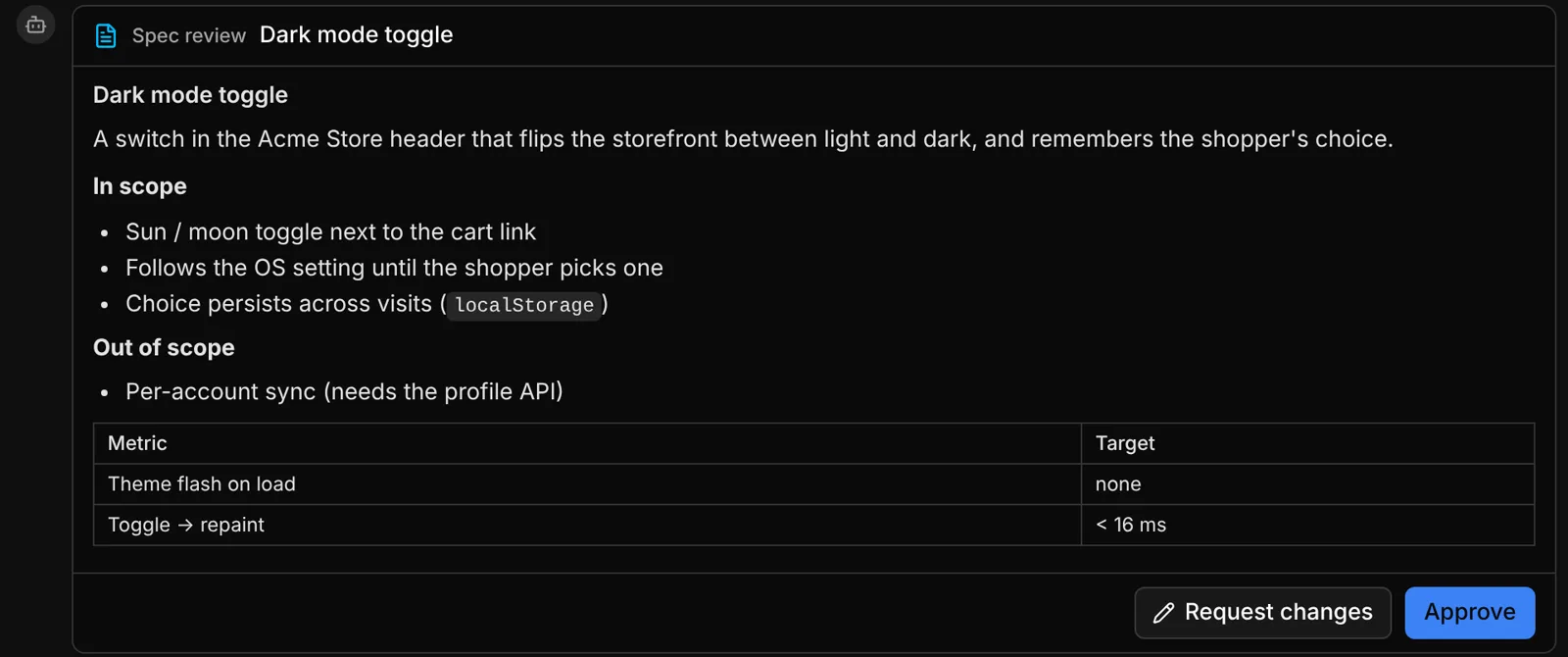
Spec review
A spec or PRD in Markdown with Approve and Request changes. Request changes asks for a note saying what to change.
HTML preview
A self-contained HTML page, rendered in a sandboxed frame so you can look at a component before it is built into your app. Source shows the HTML and the expand button opens a larger view.
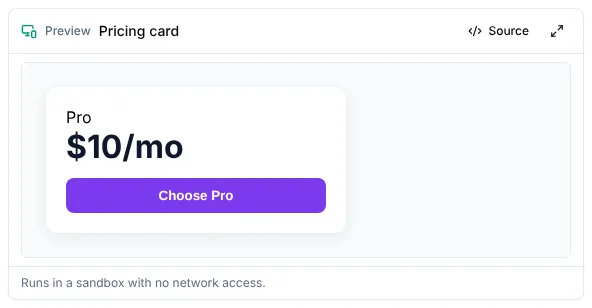
The frame runs scripts but has no network access and no access to the Shep page around it. Images and styles from the internet don’t load, so agents inline their CSS and scripts.
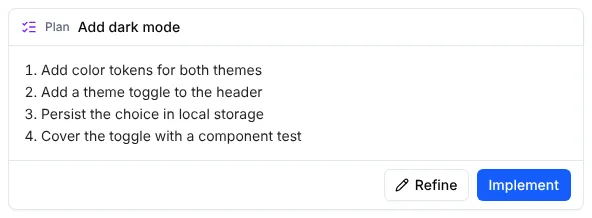
Plan
A plan in Markdown with Implement and Refine. Refine asks for a note.
Decision
A question with options, a recommended option and room for your own answer. This is how agents ask you things in chat; it’s the same panel as everywhere else in Shep. Press 1–9 to pick an option. See Decisions & agent questions.
Your answer to any block is stored in the conversation and sent to the agent as a plain message, for example “The user approved the spec … Continue with it.” That works with every agent and survives restarts.
Approving a spec review in chat tells the chat agent; it does not by itself pass a feature’s approval gate. The agent then runs shep feat approve for you, or you approve in the feature drawer, the terminal console or with shep feat approve <id>.
Post a block yourself: shep chat block
Agents post blocks with a CLI command, so it works with any agent that has a shell. You can run it too, for example from a script.
shep chat block spec-review --title "Login PRD" --file specs/login.md
shep chat block preview --title "Pricing card" --file pricing.html
shep chat block plan --title "Add dark mode" --content "1. Add color tokens
2. Add a theme toggle"| Argument / option | Meaning |
|---|---|
<kind> | spec-review, preview or plan |
--title <title> | Title in the block header (up to 200 characters) |
--file <path> | Read the body from a file: Markdown, or HTML for preview |
--content <text> | The body as text. Pass exactly one of --file and --content |
--scope <conversation> | The conversation to post into. Defaults to $SHEP_CHAT_SCOPE |
Every chat session sets SHEP_CHAT_SCOPE, so an agent never needs to know which conversation it is in. Outside a chat, pass --scope: global, repo-<repository id>, app-<application id>, or a feature id. Bodies are capped at 64 KB of Markdown or 256 KB of HTML. A block posted from another process appears in an open chat without a reload.
From an MCP client: post_chat_block
Shep’s MCP server (shep mcp) offers the same thing as the tool post_chat_block:
| Input | Meaning |
|---|---|
scope | global, repo-<repository id>, app-<application id> or a feature id |
type | spec_review, plan_card or html_preview |
title | Title in the block header |
markdown | Body for spec_review and plan_card |
html | A self-contained HTML document for html_preview |
The user’s answer arrives in the conversation as their next message.